Exam Portal Live — Students Only

Safe Exam Browser
Setup Guide for
IgnitoLearn Students

Follow this step-by-step guide to install, configure and launch the Safe Exam Browser (SEB) — so your online examination runs smoothly from start to finish.

Start Setup Guide
Need help? Call: Phone: 079-23267623 / 586  |  Mobile: +91 9909944890
Quick Setup Checklist
Complete before exam day
Install Safe Exam Browser (Windows / macOS)
Allow Camera & Microphone in System Settings
Close all background & remote access apps
Download the IgnitoLearn exam config (.seb) file
Plug in charger and ensure stable internet
Compatibility

Supported Platforms

Safe Exam Browser runs on desktop computers only — not phones or tablets.

Windows 10 / 11

Fully supported on 64-bit Windows versions.

  • Windows 10 (64-bit) — version 1903 or later
  • Windows 11 (64-bit) — all released versions
✓ Recommended: Windows 11
macOS

Compatible with recent macOS releases.

  • macOS 11 (Big Sur), 12 (Monterey), 13 (Ventura)
  • macOS 14 (Sonoma), 15 (Sequoia), 26
✓ Recommended: Latest macOS
System Check

System & Network Requirements

Please ensure your computer and internet connection meet the specifications below before initiating the exam.

1. Hardware Specifications
Component Minimum Requirement
Processor (CPU)
Dual-core processor or better
RAM
At least 4 GB (8 GB recommended for smooth performance)
Free Disk Space
At least 350MB free storage for installation (1 GB recommended)
Display
Single monitor / single active display only (multi-monitor setups are not allowed by SEB)
Webcam
Working internal or external USB webcam required
Microphone
Working internal or external microphone.
Students are not allowed to wear any headphones, earphones, earbuds, or headsets while taking the examination.
Keyboard & Mouse
Standard physical keyboard and Mouse / Trackpad
Power
Laptop should stay connected to a power source during the exam to avoid shutdown
2. Network & Internet Requirements
Requirement Detail
Internet Connection
Stable broadband / Wi-Fi connection (wired connection preferred where possible)
Wi-Fi Frequency
Recommended to use 5 GHz Wi-Fi network for faster speeds and a more stable connection
Bandwidth
A stable connection speed of 20 Mbps is required. 30 Mbps or higher is recommended.
Backup Option
Keep a mobile hotspot ready as backup connectivity in case main Wi-Fi fails
Connection Speed Test

Click below to test your current internet speed and verify if it meets the minimum 20 Mbps requirement.

Download

--

Mbps
Interactive Guide

Setup in 4 Easy Steps

Click any step below to watch the tutorial video and read the written instructions. Each step has its own dedicated video.
1 Download SEB
2 Allow Permissions
3 Download Config
4 Launch Exam
Step 1 — Download SEB Installer
Step 1 Tutorial
Video cannot be embedded here

This video is restricted from loading inside this page.

Watch on YouTube
Video not loading? Try the YouTube link → Watch on YouTube
1

Download SEB Installer

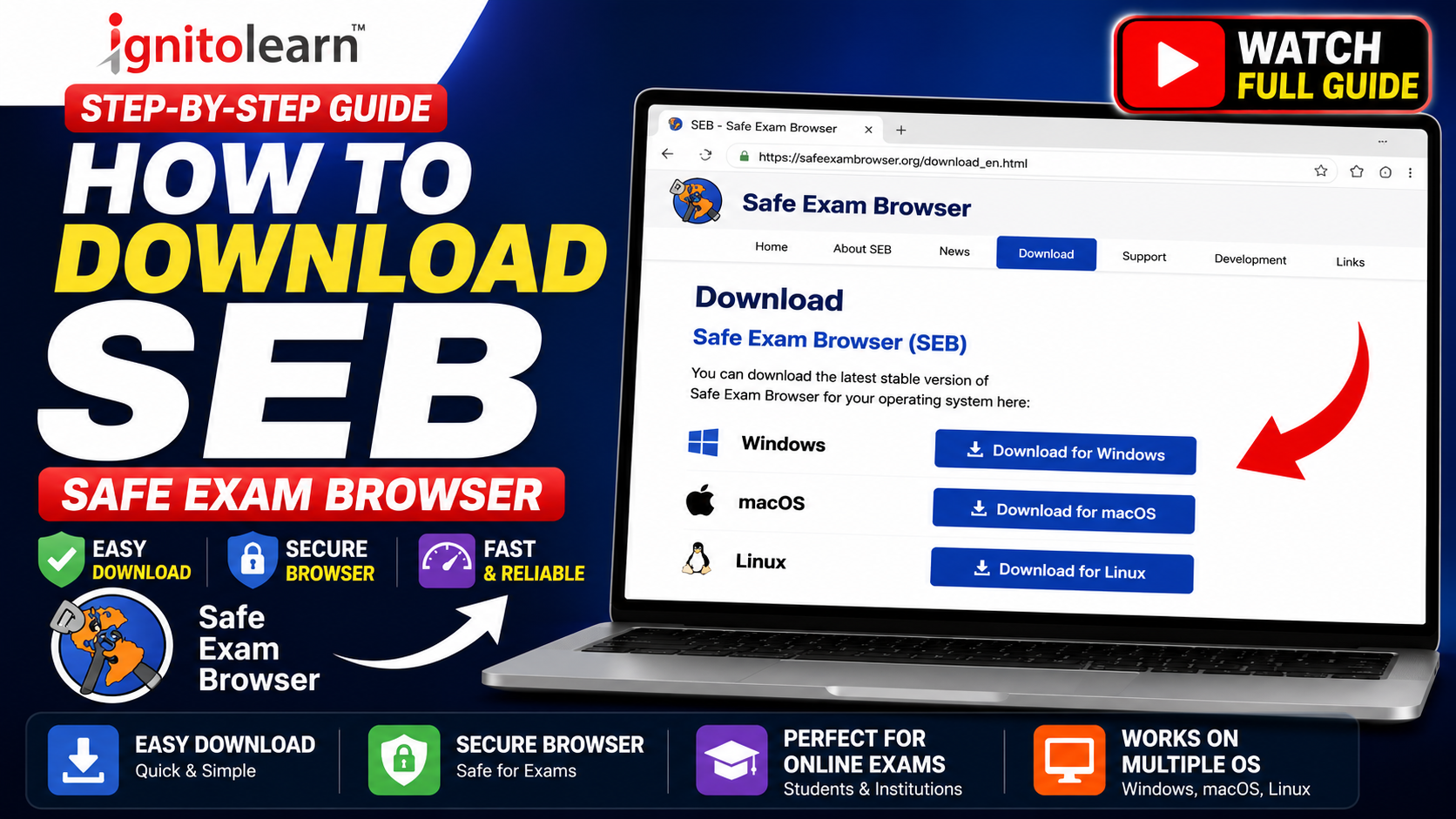
Download the official Safe Exam Browser installer for your operating system. Do NOT install on mobile devices or tablets.

  • 1Open your browser and go to safeexambrowser.org, or click the Windows / macOS buttons below for a direct download.
  • 2Click Download and choose Windows or macOS installer (approx 335 MB).
  • 3Once the download finishes, double-click the downloaded .exe or .dmg file to start the installer.
  • 4If Windows shows a "User Account Control" pop-up or macOS prompts for permission, click Yes / Allow to let the installer run.
  • 5Follow the on-screen setup wizard: accept the license agreement and click Install, then Finish once complete.
  • 6Whitelist SafeExamBrowser.exe in your antivirus software so it is not blocked or quarantined.
2

Allow Device Permissions

SEB requires camera and microphone access for proctoring. Enable them at the OS level before exam day.

  • 1Windows: Settings → Privacy & Security → Camera → Enable
  • 2Windows: Settings → Privacy & Security → Microphone → Enable
  • 3macOS: System Settings → Privacy → Camera → Allow SEB
  • 4macOS: Also enable Microphone, Screen Recording & Accessibility
  • 5When SEB launches, click Allow on all permission prompts
System Test Not Started

Click below to check if your browser allows webcam and microphone access correctly.

3

Download Config File

Download your unique .seb configuration file. It locks SEB into exam mode and connects to IgnitoLearn servers.

  • 1Click the Download Config button below
  • 2Save GTU-Online-MBA-IB-W25.seb to your Desktop
  • 3Do NOT rename or edit this file
  • 4Keep it accessible for exam day
Step 4 — Launch Exam
Step 4 Tutorial
Video cannot be embedded here

This video is restricted from loading inside this page.

Watch on YouTube
Video not loading? Try the YouTube link → Watch on YouTube
4

Launch Your Exam

Double-click the .seb config file to launch SEB directly. Do NOT open SEB manually first.

  • 1Clean Background: Fully quit screen recorders (OBS, Bandicam) and remote desktop platforms (AnyDesk, TeamViewer) to pass SEB security.
  • 2Locate Configuration: Open your Desktop or Downloads folder and select the downloaded file named GTU-Online-MBA-IB-W25.seb.
  • 3Automatic Launch: Double-click the .seb configuration file. Safe Exam Browser will open automatically in secure full-screen mode.
  • 4Allow Access: Click Allow on the prompt asking for camera and microphone permissions. (Crucial for online proctoring).
  • 5Portal Login: Fill in your student registration credentials (username and password) on the IgnitoLearn login screen.
  • 6Start Exam Session: Click the green Start Exam button in the portal to begin your monitored examination.
Step 1

Download Safe Exam Browser

Choose the correct installer for your operating system. Install on laptop/desktop only.

SEB for Windows

Latest: v3.10.1

SEB for macOS

Latest: v3.6.1

Important — Before Exam

Close These Apps First

Remote access, screen recording, and VM software will block SEB from starting. Close all of the following before your exam.

Why this matters:
SEB automatically detects active background remote-access and screen-capture tools. If any are running, the exam will refuse to load.
Troubleshooting: Remote Access Blocks (Chrome Remote Desktop & AnyDesk)

If SEB detects active background remote-access tools (like AnyDesk or Chrome Remote Desktop), follow these steps to stop them:

Step 1: Open Command Prompt as Administrator

Click the Windows Start menu, type cmd, right-click Command Prompt, and select Run as administrator.

5.1 Chrome Remote Desktop
Action Command (click copy icon)
1. Stop the background service
net stop "Chrome Remote Desktop Service"
2. Force-close host process
taskkill /F /IM remoting_host.exe
5.2 AnyDesk
Action Command (click copy icon)
1. Stop the AnyDesk background service
net stop "AnyDesk Service"
2. Force-close AnyDesk application
taskkill /F /IM AnyDesk.exe
Step 2 (Both Tools): Confirm in Task Manager

After running the commands, open Task Manager (Ctrl+Shift+Esc) and confirm that no AnyDesk or Chrome Remote Desktop process is running under the Processes or Services tab. Only then launch SEB for the exam.

Important: If a command returns "service not found", it simply means that particular service is not installed on your computer — this is normal and can be ignored. If a student uses any other remote-access tool (TeamViewer, UltraViewer, etc.), it must be closed the same way via Task Manager before starting SEB.
AnyDesk
TeamViewer
RustDesk
Chrome Remote
Remote Desktop
OBS Studio
Bandicam
Zoom
Google Meet
MS Teams
Discord
VirtualBox
VMware
BlueStacks
Steam
Clipboard Mgr
Step 2

Camera, Microphone & Browser Permissions

SEB needs these permissions to proctor your exam session. Enable them before launching your exam.

Camera Access
  • Open SEB and click Allow when prompted
  • Allow microphone access as well
  • Never click Block
Microphone Access
  • Click Allow when SEB requests mic access
  • Speak briefly to confirm input level moves
  • Unmute from system settings if muted
Browser Permissions
  • SEB uses its own built-in browser — no extra setup needed
  • Allow camera & mic if prompted inside SEB's browser
  • Clear cache if permission prompt doesn't appear
Live Permission Test Tool
Not Started

Click the button below to test if your webcam and microphone hardware are connected and approved in this browser.

Windows

Windows Permission Guide

Enable camera and microphone at the OS level so SEB can use them.

  1. Open Settings
  2. Go to Privacy & Security
  3. Click Camera → toggle Camera Access ON
  4. Click Microphone → toggle Microphone Access ON
  5. Ensure "Let apps access your camera/microphone" is enabled
Windows Privacy Path
macOS

macOS Permission Guide

macOS requires explicit permission grants for camera, microphone, screen recording and accessibility.

  1. Open System Settings
  2. Go to Privacy & Security
  3. Enable Camera for Safe Exam Browser
  4. Enable Microphone for Safe Exam Browser
  5. Enable Screen Recording for Safe Exam Browser
  6. Enable Accessibility for Safe Exam Browser
macOS Privacy Path

Download Exam Configuration

This .seb file locks your browser into exam mode and connects you directly to your IgnitoLearn exam session.

Once downloaded, double-click this file to launch Safe Exam Browser directly into your exam. Do not open SEB manually first.
Exam Day

How to Start Your Exam

Follow these exact steps on the day of your exam, in order. Do not skip any step.

1
Download the .seb file

Click the "Download GTU-Online-MBA-IB-W25.seb" button on this page and save it to your desktop.

2
Double-click the .seb file

Locate GTU-Online-MBA-IB-W25.seb in Downloads/Desktop and double-click it. Do NOT open SEB manually.

3
SEB Opens Automatically

Safe Exam Browser launches in full-screen mode and loads your exam portal directly.

4
Login with Credentials

Enter your IgnitoLearn username (roll number) and password to authenticate.

5
Allow Camera Permission

When prompted, click Allow to grant camera access. Do not click Block.

6
Allow Microphone Permission

Also allow microphone access when SEB asks. Both camera and mic are required.

7
🎯 Start Exam!

Click the Start Exam button on the portal. Good luck!

During the Exam

Important Rules

Violating any of these rules may end your exam session automatically.

Do not minimize the Safe Exam Browser window
Do not close Safe Exam Browser during the exam
Do not disconnect your internet connection
Do not use an additional or external monitor
Do not connect a mobile device to your computer
Do not open any other application or browser window
Interactive

Setup Readiness Checklist

Tick each item as you complete it. Track your readiness before exam day.

Your Readiness 0%
FAQ

Frequently Asked Questions

Answers to the most common questions students ask before exam day.

Still facing issues?
Our support team is available 24/7 before and during exam windows.